Limits
The Limits tab lets you set the limits for the user.
Note: The following limits do not override any domain-level limits that are set. However, if they are set to a non-zero value, they do override any domain-user limits.
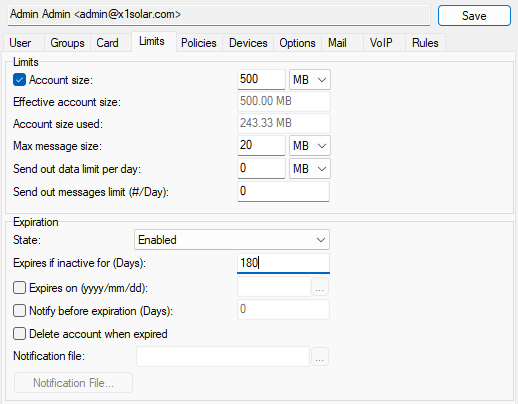
Figure. User level management: Limits tab.
|
Field |
Description |
|---|---|
|
Account size |
Limits the size of a user's account. Both email messages and groupware items are included in this limit. Enter a value and select Kilobytes, Megabytes or Gigabytes from the dropdown box. Once exceeded no further messages will be accepted for that user. Note: If the box is checked, zero values override domain-user limits (of account size) and mean that the account has unlimited disk space available. If not checked, values are inherited from a domain level ({domain} > Limits > Users > Account size). |
|
Effective account size |
Limits the size of a user's account. This limit is defined by the license plan established for the user. In our case, the user account is limited to 500MB by the license plan. Note: You can set the limit in Account size to be lower than Effective account size. In this way, you will set up the account size limit to be lower than the limit established by the license. For example, if you set Account size to 400MB, the value in Effective account size will change to 400MB as well. However, if you set Account size to be higher than Effective account size (for example, 900MB), the latter will change only to the maximum value allowed by the license (500MB). Note: For on-premise and SaaS customers, the storage per user is not limited by the license plan. Thus, this setting does not influence the user account limits for them. |
|
Account size used |
Displays how much space is occupied by data. You can find the same information in Status > Volume after filtering by the user account. |
|
Max message size |
Limits the size of any message sent by a user. Enter a value and select Kilobytes, Megabytes or Gigabytes from the dropdown box. It is also possible to enable checking of user size limits of incoming messages using API and setting C_Mail_SMTP_Other_IncomingMessageLimits to 1. If this option is enabled and the message violates limits of any of the recipients, the whole message is rejected with a SMTP permanent error. Warning: Be aware that attachments to messages are Base64 encoded, which adds a size overhead of around 30%, so if you wish to limit your users to attachments of 1MB you should set the limit to 1.3MB. |
|
Send out data limit per day |
Limits the amount of data that any single user can send out in one day. Enter a value and select Kilobytes, Megabytes or Gigabytes from the dropdown box. Once a user exceeds the limit no further messages will accepted from that user. Note: A message sent to multiple recipients will be counted for each recipient, i.e:. a 1MB message sent to 10 recipients will be counted as 10 MB towards the limit. Note: Local emails are not included. |
|
Send out messages limit (#/Day) |
Limits the number of messages that a single user can send out in one day. Once exceeded no further messages will be accepted from that user. Note: Local email sent by the user is not considered. The number of recipients is considered because each recipient can be on a different server and it means that IceWarp Server has to send mail out additional times. Note: This value corresponds with Account Statistics > Sent Out. |
Limits Tab Expiration Section
|
Field |
Description |
|---|---|
|
State |
|
|
Expires if inactive for [Days] |
The account expires if it is not used for the specified number of days. When expired, the account is disabled after midnight at the end of the next day after expiration. |
|
Expires on (yyyy/mm/dd) |
Specifies that the account will expire on the specified date. The account will be disabled at midnight at the end of the day. |
|
Notify before expiration (Days) |
If the account is set to Expire on a specific date then a notification message can be sent the specified number of days before the account expires. |
|
Delete account when expired |
Expired accounts will be deleted if this option is on. Note: You may not be able to retrieve account information once it is deleted. |
|
Notification file |
This specifies the full path and file name of a report that will be sent to the user informing them that their account will expire soon. If this field is blank, a standard report will be generated. |

